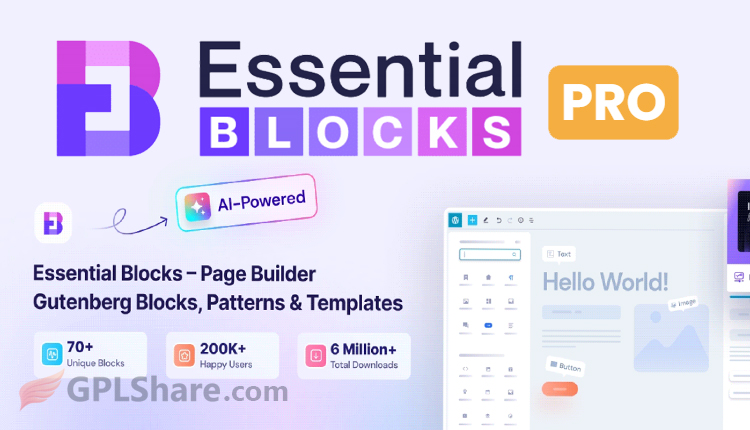

Essential Blocks Pro is a plugin created by WPDeveloper the group that made Essential Addons for Elementor.
This plugin is made to work as an upgrade for Gutenberg, which is the Block Editor, the main editor, in WordPress. To use it you need to get the free version called Essential Blocks Free because the Pro version acts as an extra that gives you special tools and features.
Performance Optimization & Key Advantages
And best of all – this plugin won’t slow down your website’s performance. With full control, you can turn on what you need and switch off others that you don’t use.
You’ll get support for global typography settings, custom CSS addition capability, modern visual effects such as Liquid Glassmorphism and other entrance animation options.
As with many modern block editors, you also get full control over designing your websites’ layouts for mobile/tablet/desktop device views, addressing a big disadvantage of the default Gutenberg editor.
The plugin comes with full certification on WPML Compatibility to create Multilingual Sites and Seamless Integration With Google Fonts.
Key Features Essential Blocks Pro
- 70+ Advanced Block Options – I find that Essential Blocks Pro includes many ready‑to‑use elements that’re not in the standard Gutenberg editor, such as Advanced Slider, Mega Menu, Advanced Search, Interactive Timeline, Countdown, Popup, Testimonial and Flipbox.
- WooCommerce Builder Blocks – Essential Blocks Pro lets online store owners create custom product pages without effort. It has blocks such as Product Grid, Carousels, Pricing Layouts and interactive Add‑to‑Cart buttons, all inside the Gutenberg editor.
- Dynamic Content & ACF Support – Essential Blocks Pro works with Advanced Custom Fields (ACF). It can automatically bring data from custom fields into page layouts.
- Integrated AI Technology – Essential Blocks Pro has a built‑in AI helper that can create headline ideas, write content and generate images inside the editor.
- Thousands of Ready‑to‑Use Templates – Essential Blocks Pro gives you access, to thousands of ready‑to‑use patterns and layout templates that can be imported in a clicks often with the Templately platform to speed up building a website.
Note: To use ready-made patterns you need a Templately account tied directly into your server. As we are only providers for GPL versions, we make no provision for providing Templately accounts, so this feature might not be working.
Essential Blocks Pro Troubleshooting Guide
This guide is here to help you figure out separate and fix the common technical problems that come up when using Essential Blocks Pro inside the WordPress Gutenberg editor.
Problems inside the Gutenberg Editor (Backend)
When you are editing a page the Gutenberg editor might suddenly stop working might not save drafts or might show a message that says “The response is not a valid JSON response”. Reasons for this problem include: clashes with the WordPress REST API route a firewall that’s too strict (for example Cloudflare or ModSecurity) or clashes with plugins that aim to make security better.
Step‑by‑Step Fix:
- Go to the WordPress Dashboard → Settings → Permalinks.
- Do not change any settings, scroll to the bottom and press the “Save Changes” button. This will make WordPress rewrite (flush) the REST API route.
- If you use Cloudflare log into the Cloudflare dashboard, look at the “Security Events” section. Add an exception, for the request if the Web Application Firewall (WAF) is blocking Gutenberg modules.
The website shows a message that says “There has been a critical error on this website” or shows a white screen when you try to activate the Pro license or load blocks that contain a lot of dynamic data. This happens, because the PHP memory limit on your server is below the minimum required to run premium scripts.
Step‑by‑Step Fix:
- Access your website files using FTP client such as FileZilla, or by using the File Manager in your cPanel.
- Locate & edit you
wp-config.phpfile, in the root directory. - Add the following line of code before the line that says “/* That’s all, stop editing! Happy publishing. */”
define('WP_MEMORY_LIMIT', '256M');. - Save the file.
- If the issue still exists contact your hosting provider, Ask them to increase the PHP memory limit on your hosting server to 512M.
Frontend Display Issues
Blocks look right inside the editor (backend) yet when you view the page on the public side (frontend) the layout falls apart fonts return to the default style or the space between items vanishes. This problem happens when the CSS file created by the plugin gets trapped in the cache or does not get rewritten by the server.
Here is the solution:
- Navigate to the WordPress Dashboard click on Essential Blocks and open Settings.
- Open the Asset Generation tab. Find the Regenerate Assets/CSS button. Click that button so the plugin will create a stylesheet file.
- If a speed optimization plugin like LiteSpeed Cache, WP Rocket or W3 Total Cache is active perform a Clear All Cache action.
- Open the webpage, in Incognito or Private Browsing mode to make sure you are not looking at a copy of the page kept in your browser.
Interactive blocks appear on the screen. Animations do not play or buttons do not work when visitors click on them. This happens because of a JavaScript error. The error occurs due to a conflict with another page builder plugin like Elementor. It can also happen because of strict settings in an optimization plugin such as Combine JavaScript or Defer JavaScript.
Here is the solution:
- Open the page that has the problem in Google Chrome. Right-click, on the page, select Inspect. Go to the Console tab, if there is text that says “Uncaught TypeError” it means a JavaScript script is broken or stopped from running.
- Go to the settings of the cache optimization plugin you are using. Turn off the Combine JavaScript feature or the Defer JavaScript feature for a time.
- Clear the website cache, check if the blocks work properly again.
How to Download
- Log in to your GPLShare account
- Go to your download history
- Download Essential Blocks Pro v3.1.0 from the list provided
- Or download directly from this page if you have a premium membership
- That’s it! Enjoy the full version of Essential Blocks Pro.
How to Install Plugin
- Please ensure that you download the
.zipfile from GPLShare - Before installing, you must first unzip the
essential-blocks-pro-3.1.0-pack.zipfile - Go to WordPress Admin → Plugins → Add New → Upload Plugin
- Choose the
.zipinstaller file and click Install Now - After installation, click Activate Plugin
- Done! Essential Blocks Pro is now active on your site
How to Activate License
Basically, the license credentials are not required, as they are only needed to receive updates. However, if you wish to activate the license, here are the instructions
- Once installed, navigate to the License section.
- Enter the required license credentials. (The license credentials can be found inside the package file you downloaded.)
- Done.
This product is licensed under the GPL
The GNU General Public License (GPL) is a copyleft license that guarantees you the freedom to run, study, share, and modify the software. If you distribute the software, whether modified or not, you must also pass on these same freedoms. Source: Official License Text (GPLv3) https://www.gnu.org/licenses/gpl-3.0.en.html
Conclusion & Plugin Download
GPLShare is the ultimate solution for anyone looking for a safe and trusted way to download Essential Blocks Pro v3.1.0. Every product available on our platform is a 100% secure GPL License WordPress Plugin, allowing you to use it on Essential Blocks Pro unlimited sites without any domain restrictions.
While we offer exclusive free download access for our premium members, we strongly advise against risking your website security by using an unsafe Essential Blocks Pro nulled version from GPL markets that provide it completely free.